|
By: Paul S Cilwa |
|
|
Page Views: 3,424 |
| Hashtags: #VisualBasic60 |
| A Visual Basic 6.0 method of easily accessing WIN.INI files. |
| Estimated reading time: 16 minute(s) (3687 words) |
Of course, we no sooner got accustomed to "private profiles" than
Windows 95 came out, and the preferred depository for that kind of
information became the system registry. The main reason for using
the registry was that
- Access was faster
- It automatically supported multiple users on the same computer
Visual Basic's GetSetting and SaveSetting functions
once accessed Profiles; but when VB
moved to 32bits they were redirected to the Registry. That doesn't
mean they aren't still useful, though, as the dozens of Internet
forms devoted to VB programming can attest. Each contains many
requests: "How can I access a
.INI file?" And so, I present a class to
do just that.
Understanding the Profile Format
Let's begin by calling these things by their right name:
Profiles. (Called that, I assume, since "profile file" sounds
like the speaker has the hiccups.)
Profiles share a common structure, because they are usually
managed by the same API functions. In this format, keyed values are
grouped into sections. When there were just two
Profiles (SYSTEM and
WIN), the section was assumed to be the
name of an application, and much of the documentation still refers
to the section header that way. Now, with most applications owning
their own Profiles, the files contain only one or a few sections.
The name of the section is always set off by brackets, and may
include embedded blanks. The following list contains valid section
names, the way they might appear in a Profile:
[Microsoft Word]

[Clock]

[Menus]
Section names are not case sensitive, so entering "CLOCK" or even
"cloCK" would access the "Clock" section equally well.
Beneath each section name there is usually a group of keyed
values (an empty section is permissible, however). A typical section
from a WIN.INI file is shown below:
[Desktop]
Pattern=(None)
GridGranularity=0
wallpaper=camper.bmp
IconSpacing=75
TileWallPaper=1
In this case, there are five keyed values, the first of which is
"Pattern," located in the "Desktop" group. Like section names, keys
are not case sensitive.
The value of a key begins at the first character past the equal
sign, so
wallpaper=camper.bmp
is not the same as
wallpaper = camper.bmp
Unless you hard-code a fully-qualified pathname as the filename
parameter, Windows will always look for a Profile in the Windows directory—not in the
Windows\System directory, the
application's "current" directory, nor even any of the directories
listed in a PATH environment variable. You can, of course, construct
a fully qualified pathname at run-time. At one time it was
recommended that you let your Profile reside in the Windows
directory with all the others. But now, the convention is to place
it in the Program Files folder the application resides in.
Can't Touch This
One other aspect of Profiles, is that you don't "open" or "close"
them like you do "normal" files. In fact, you don't even have to
explicitly create them. When you request data from one, you supply a
default value. If that key isn't present, or, for that matter, the
section, or even the file, the default is returned: no harm, no
foul. You can't even tell if the value came from a file or the
default!
When you write a new value:
- If the file didn't exist before, it is created.
- If the section didn't exist before, it is created.
- If the key didn't exist before, it is created.
- The value is written.
Key Collecting
I wanted my Profile class to look like a keyed collection of
values. And, since it is a class—and you are free to create
as many instances of it as you want—that meant I didn't have to
worry overmuch about Sections; let each instance stand for a single
Section. Most applications will not need more than one instance.
A keyed collection is like a regular Collection object, except
that the items it contains are only accessible by key, not numeric
index.
However, I didn't want to lose the generally-useful abilities of
the Private Profile API functions, like being able to enumerate
Sections and Keys within sections. So I put that in, too.
Creating the Project
If you wish, you can simply download
the finished class.
Or, you can build it with me.
To do so, open Visual Basic 6 and create a new, standard project.
Then click the Project -> Add Class Module menu command. That
will instantly open a code window. Tap your F4 key to bring up the
Properties box, and change the Name property from "Class1" to
"ProfileList".
Option Explicit

' This object represents a single section of
' a Windows Ini file by encapsulating the
' Windows Private Profile API.

Public Sections As New Collection
Public Keys As New Collection

Private i_Filename As String
Private i_Section As String

Private Declare Function GetPrivateProfileSectionNames _
    Lib "kernel32" _
    Alias "GetPrivateProfileSectionNamesA" ( _
	ByVal ReturnBuffer As String, _
	ByVal ReturnBufferSize As Long, _
	ByVal Filename As String) As Long

Private Declare Function GetPrivateProfileSection _
    Lib "kernel32.dll" _
    Alias "GetPrivateProfileSectionA" ( _
	ByVal Section As String, _
	ByVal ReturnBuffer As String, _
	ByVal ReturnBufferSize As Long, _
	ByVal Filename As String) As Long

Private Declare Function GetPrivateProfileString _
    Lib "kernel32" _
    Alias "GetPrivateProfileStringA" ( _
	ByVal SectionName As String, _
	ByVal Key As Any, _
	ByVal Default As String, _
	ByVal Value As String, _
	ByVal ValueSize As Long, _
	ByVal Filename As String) As Long

Private Declare Function WritePrivateProfileString _
    Lib "kernel32" _
    Alias "WritePrivateProfileStringA" ( _
	ByVal SectionName As String, _
	ByVal Key As Any, _
	ByVal Value As Any, _
	ByVal Filename As String) As Long

Enum SupportedDataTypes
    vbString = VbVarType.vbString
    vbDate = VbVarType.vbDate
    vbByte = VbVarType.vbByte
    vbInteger = VbVarType.vbInteger
    vbLong = VbVarType.vbLong
    vbDecimal = VbVarType.vbDecimal
    vbSingle = VbVarType.vbSingle
    vbDouble = VbVarType.vbDouble
End Enum
The bulk of the section is taken by the four API declarations.
You'll notice I "cleaned up" Microsoft's silly naming convention.
Because Visual Basic will prompt you for the arguments to a
function by name—that is, the names in the function's declaration—it
makes sense to me to dispense with the obfuscating prefixes and
stick with descriptive, meaningful argument names. And the tool tip
will tell you what the data type is!
Above those four declarations, I put two Collection objects—Sections
and Keys, so you can guess what those will be used
for—and two Private variables, i_Filename and i_Section.
The "i_" prefix is one I use to distinguish internal
variables from their Public Property Get and Let
procedures.
And, afterwards, is a bit of a surprise. Let's save the
discussion for later.
Filename property
Obviously, the ProfileList class will have to know the
name of the file containing the profile. That value, which will be
used by the API calls every time a profile value is read or written,
will be stored in that internal
i_Filename property. But how does that property get set? And,
once assigned, how can it be read? After all, i_Filename is
Private—it's invisible outside this class module.
It's done through a pair of property procedures naturally.
These are procedures, very similar to Sub and Function
procedures, that "appear" to the program outside the class as
regular variables. The big difference: property procedures can do
things other than assign or retrieve values.
Let me cheat a little and show you how the value is accessed,
first:
Public Property Get Filename() As String
	Filename = i_Filename
End Property
Property Get procedures are very much like VB
Functions. They return values in just the same way, by
assigning the value to be returned, to the name of the procedure
itself. BY assigning i_Filename as the return value of the
Filename property, I, in effect, make the value Public.
So, you've got to ask—why bother?
The short answer is,
sometimes you want something to happen when the value is read, or assigned, or both. It might
be validation , calculation, or something implied by the class
itself. For example, in this class, once the Filename
is assigned, the class can be expected to provide a list of all
Sections in the profile. So, when Filename is
assigned—thus invoking the Property Let procedure—we do a
little more than assign the incoming value to i_Filename:
Public Property Let Filename(ByVal Value As String)
    i_Filename = Value
    Refresh
End Property
Starting from the top, the procedure declaration states that this
procedure is:
Public (it can be referenced outside this class module).
This implies that the Filename property is part of this
class' interface.
This particular procedure, by means of the keyword Let,
will be invoked if someone tries to assign a value to
Filename.
Values assigned to this property will be of type String
(or will be converted to that type during the assignment).
Internally, in this procedure, the assigned value will be
cleverly called Value.
Looking at the code, we find the expected assignment of Value
to i_Filename. But, after that, is a call to…Refresh?
What's being refreshed?
To find out, we need to look at the Refresh procedure.
Refresh method
In object-oriented programming, public "procedures" that aren't
properties, are called methods. Generally, methods act on the
object, make it do something other than just read or retrieve values. In the Visual
Basic world, Refresh means that the object is refreshing its
data. The data in this case is the Sections list, and
possibly the Keys list:
Public Sub Refresh()
Dim CharactersReturned As Long
Dim Result As String
Dim ResultList() As String, i As Integer

    Result = Space(2048)
    CharactersReturned = GetPrivateProfileSectionNames( _
        Result, Len(Result), Filename)
    Result = Left(Result, CharactersReturned)

    ResultList = Split(Result, Chr(0))
    Set Sections = New Collection
    For i = 0 To UBound(ResultList)
        If Trim(ResultList(i)) > "" Then
            Sections.Add Trim(ResultList(i))
        End If
    Next

    If i_Section > "" Then
        Section = i_Section
    End If

End Sub
There are four local variables. They don't need to be declared at
the top of the procedure, but I usually do that just to make things
easier for me to read. (Hey, maybe I was a C programmer just a
little too long…!) I'll describe them as I come to their use.
The first two executable statements are concerned with the mysteries
of interfacing to the Windows API. See, Windows was written in C,
for C programmers. C calling sequences and data types are mostly
very different from VB's. In fact, in order to make calling these
functions possible at all, some odd little kludges got built into
the language.
A very basic difference is the way text strings are stored. In C,
strings fill a sequence of bytes and are terminated with a NULL
character—that is, a byte whose bits are all zeroes. In Visual
Basic, the length of strings is managed differently; and they never
take up more space than they need.
In order to pass Result to GetPrivateProfileSectionNames,
then, we have to pre-allocate more than enough space;
otherwise the return value could be truncated. I arbitrarily chose
2K. The call is then made. GetPrivateProfileSectionNames
thoughtfully returns the actual number of characters returned,
not including the trailing NULL. The Left function trims any
excess characters.
Each of the section names returned, however, will be delimited
from the others by a NULL of its own. So weSplit the
Result into the ResultList array. The Sections collection is re-created; and the
section names added to it, one by one.
If you are sharp-eyed, you might have noticed that the Sections
collection was already allocated when it was declared. Why do it
again? Well, this is actually the fastest way to clear the contents
of a collection—by replacing it with a new, empty one. But a better
question would be, why pre-allocate it at all?
We want to make our objects as easy-to-use and foolproof as
possible. If someone tries to "read" the Sections before
assigning a Filename, of course there would be none to read.
But if the collection hasn't been allocated, they'll get that
dreaded "Object variable or With block variable not set"
message. This way, Sections.Count will simply equal zero.
Now, there's an odd appendix to this method:
    If i_Section > "" Then
        Section = i_Section
    End If
What's that about? Well, remember that Refresh,
being a Public method, can be called at any time. If the Section
property has already been set, then the Keys list should
also be available. It now will not surprise you to know that
assigning a value to Section automatically loads the
Keys collection, just as assigning a Filename
automatically loaded the Sections collection. By assigning the same
value again, we trigger the mechanism.
Section property
Again, the Property Get procedure is short and to the
point:
Public Property Get Section() As String
    Section = i_Section
End Property
The good stuff is in the Property Let procedure, and this time there's
no offloading into a "refresh" procedure; the work is done right here:
Public Property Let Section(ByVal Value As String)
Dim CharactersReturned As Long
Dim Result As String
Dim ResultList() As String, i As Integer, p As Integer

    i_Section = Value

    Result = Space(2048)
    CharactersReturned = GetPrivateProfileSection( _
        i_Section, _
        Result, Len(Result), Filename)
    Result = Left(Result, CharactersReturned)

    ResultList = Split(Result, Chr(0))
    Set Keys = New Collection
    For i = 0 To UBound(ResultList)
        If Trim(ResultList(i)) > "" Then
            p = InStr(ResultList(i), "=")
            If p > 0 Then
                Keys.Add Trim(Left(ResultList(i), p - 1))
            Else
                Keys.Add Trim(ResultList(i))
            End If
        End If
    Next
End Property
Similar to what we've already seen, this time we call
GetPrivateProfileSection to object the list of keys. In this
case, however, what is returned is the keys and their
values—which is more information than we actually want right now.
So, after the Result is Split into the
ResultList array, we take each string and truncate it just
before the "=" that separates the key from its value.
GetItem function
So far, we've seen Public properties and methods. Now, let's look at a
Private function:
Private Function GetItem(ByVal Key As String, _
	ByVal DefaultValue As String) As String
Dim CharactersReturned As Long
Dim Result As String

    Result = Space(2048)

    CharactersReturned = GetPrivateProfileString(Section, _
        Key, DefaultValue, Result, Len(Result), Filename)

    If CharactersReturned Then
        GetItem = Left(Result, CharactersReturned)
    End If

End Function
GetPrivateProfileString is not that different from the
other API calls we've seen. It's obviously the core function of the
class; this is what actually plucks the data from the profile. There
are many modules and even classes on the Web that end here,
providing no more of a favor than to "wrap" the API call in a
VB-friendly procedure.
But, for us, it's only the beginning.
SaveItem function
The converse of GetItem has to call the fourth API
function to place a value into the profile:
Private Sub SaveItem(ByVal Key As String, ByVal Value As String)
   Call WritePrivateProfileString(Section, Key, Value, Filename)
End Sub
Since WritePrivateProfileString doesn't return any values, we don't
have to perform any tricks before or after calling it.
Bool property
Suppose we know that a given key's value is stored as Boolean. That
could mean Yes/No, True/False, even 1/0. Wouldn't it be nice
if that could be resolved when you requested the value,
instead of afterward?
Private Property Get Bool(ByVal Key As String) As Boolean
Dim Text As String

    Text = GetItem(Key, "False")
    Bool = (UCase(Left(Text, 1)) = "Y") Or _
	(UCase(Left(Text, 1)) = "T") Or Text = "1"

End Property
This procedure, which makes use of the GetItem
function we just saw, handles that resolution. If the first
character of Key's value is Y, T or 1, the property reads as
True. Anything else will be False.
"But," you say, "this procedure is marked
Private. How can anyone make use of it?"
"You'll see," I promise mysteriously.
Meanwhile, here's the Let procedure:
Private Property Let Bool(ByVal Key As String, _
	ByVal Value As Boolean)
Dim Text As String

    Text = Value
    SaveItem Key, Text

End Property
The incoming Value will be coerced into a Boolean; when we assign that
to Text, VB automagically converts it into "True" or "False". Thus, we
achieve symmetry with the Property Get procedure.
DateTime property
Similarly, we might want a date and/or time value kept in our
profile. Here's the Get procedure:
Private Property Get DateTime(ByVal Key As String) As Date
Dim Buffer As String

    Buffer = GetItem(Key, "")
    If Buffer > "" Then
        DateTime = Buffer
    End If

End Property
We again rely on VB to convert an incoming date and/or time
from string format to Date data type. However, only
if a value was, in fact, retrieved. Otherwise, the "null" Date
value of January 1, 1899 will be returned.
The Let procedure is almost identical to the one for Bool:
Private Property Let DateTime(ByVal Key As String, _
        ByVal Value As Date)
Dim Text As String

    Text = Value
    SaveItem Key, Text

End Property
Number property
The last of these three "formatting" properties handles numbers,
or, rather, integers. The Val function makes for a safe
conversion, just in case some other program (or some one
manually) placed an invalid value in the file:
Private Property Get Number(ByVal Key As String) As Long

   Number = Val(GetItem(Key, 0))

End Property
The Property Let procedure
follows the same pattern we've seen, allowing a Byte,
Integer or Long to be converted to text then written out:
Private Property Let Number(ByVal Key As String, _
        ByVal Value As Long)
Dim Text As String

    Text = Value
    SaveItem Key, Text

End Property
Item property
Okay, now we're ready for the real interface, the Public one users will see.
First, remember the Enum from the (General)(Declarations) section?
Enum SupportedDataTypes
    vbString = VbVarType.vbString
    vbDate = VbVarType.vbDate
    vbByte = VbVarType.vbByte
    vbInteger = VbVarType.vbInteger
    vbLong = VbVarType.vbLong
End Enum
I've borrowed a subset of the available VB data types. There are
others; you could add to them if you wished.
Now, let's look at the Item property. Remember, my
original wish for this class was that it would look like a "keyed
collection" of values. All collection classes have an Item
property; if you haven't noticed it, it's because the Item
property is the default property for the class; you don't
have to type it's name. When you code something like
x = List(2)
you are really programming
x = List.Item(2)
So, let's examine the Get procedure:
Public Property Get Item(ByVal Key As String, _
    Optional ByVal DataType As SupportedDataTypes = vbString) As Variant

    Select Case DataType
    Case vbBoolean
        Item = Bool(Key)

    Case vbByte, vbInteger, vbLong, vbDecimal
        Item = Number(Key)

    Case vbDate
        Item = DateTime(Key)

    Case Else
        Item = GetItem(Key, "")

    End Select

End Property
Thanks to the fact that those Private properties are done, this
procedure winds up basically being a switch. If the data type is not specified,
String is assumed. The value is retrieved, using whatever procedure is
appropriate, and passed back. Remember, even if the actual data type is not one
specifically supported, VB's built-in data conversion will ensure the value is
returned in a meaningful way.
The DataType property is optional; it defaults to
vbString so generally it doesn't even need to be supplied.
Because of the rules of declaring property procedures, we have to set up the
Property Let procedure in exactly the same way:
Public Property Let Item(ByVal Key As String, _
    Optional ByVal DataType As SupportedDataTypes = vbString, _
    ByVal Value As Variant)

    If DataType = vbString Then
        DataType = VarType(Value)
    End If

    Select Case DataType
    Case vbBoolean
        Bool(Key) = Value

    Case vbByte, vbInteger, vbLong
        Number(Key) = Value

    Case vbDate
        DateTime(Key) = Value

    Case Else
        SaveItem Key, Value

    End Select

End Property
However, in this case, we can be a little smarter.
Value is a Variant, so we can use the built-in VarType
function to override whatever (may have been) specified. While
VarType might return a data type we don't specifically support
(such as vbDecimal), such as data type will be handled by the
Case Else and treated as a string, which is perfectly adequate.
There's one more thing we have to do before this property is
complete: We have to mark it as the default property. We do that by
selecting the Tools -> Procedure Attributes menu command.
After clicking the "Advanced" button, the dialog looks like this:
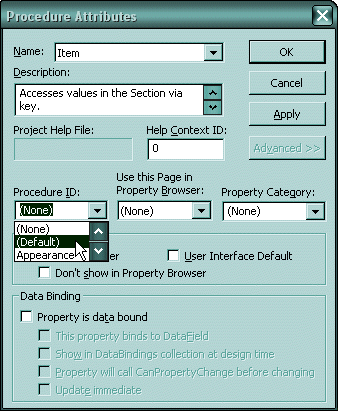
You can (and should!) add a description; but the cursor is
pointing to the important part: the "Procedure ID". By default, it
is set to "(None)". You are allowed to make it "(Default)" for one,
and only one, property per class.
Delete method
The WritePrivateProfileString possesses an odd, extra,
ability. It can be used to remove a key and its value entirely.
Normally, we simply overwrite values. But if you really want to
remove a key from the profile so that no other program (or person)
can read it, call the Delete method:
Public Sub Delete(ByVal Key As String)
   WritePrivateProfileString Section, Key, vbNullString, i_Filename
End Sub
If a Section and Key are specified, but instead of a
Value—any value—the special vbNullString
constant is passed, the Key will be deleted.
Clear method
Similarly, an entire section can be erased. Since the ProfileList class
represents an entire section, and acts like a collection, it makes sense that
its Clear method not only clear the in-memory copies, but the section
itself:
Public Sub Clear()
   WritePrivateProfileString Section, vbNullString, vbNullString, i_Filename
End Sub
As before, we pass the vbNullString constant in place of the
Value; but we pass it in place of the Key, as well.
That deletes all the keys and values in the Section, and the
Section name itself, from the profile.