|
By: Paul S Cilwa |
Posted: 4/2/2026 |
|
Page Views: 315 |
| Hashtags: #Programming #AI #CLI #CommandLine #UserInterface #SoftwareDesign |
| Why every modern app should have both a graphical interface for humans and a command-line interface for AI. |
| Estimated reading time: 5 minute(s) (1048 words) |

Here's the idea: every app you build from now on should
have two doors. One for humans. One for AI. And they
should both lead to the same room.
What's a CLI?
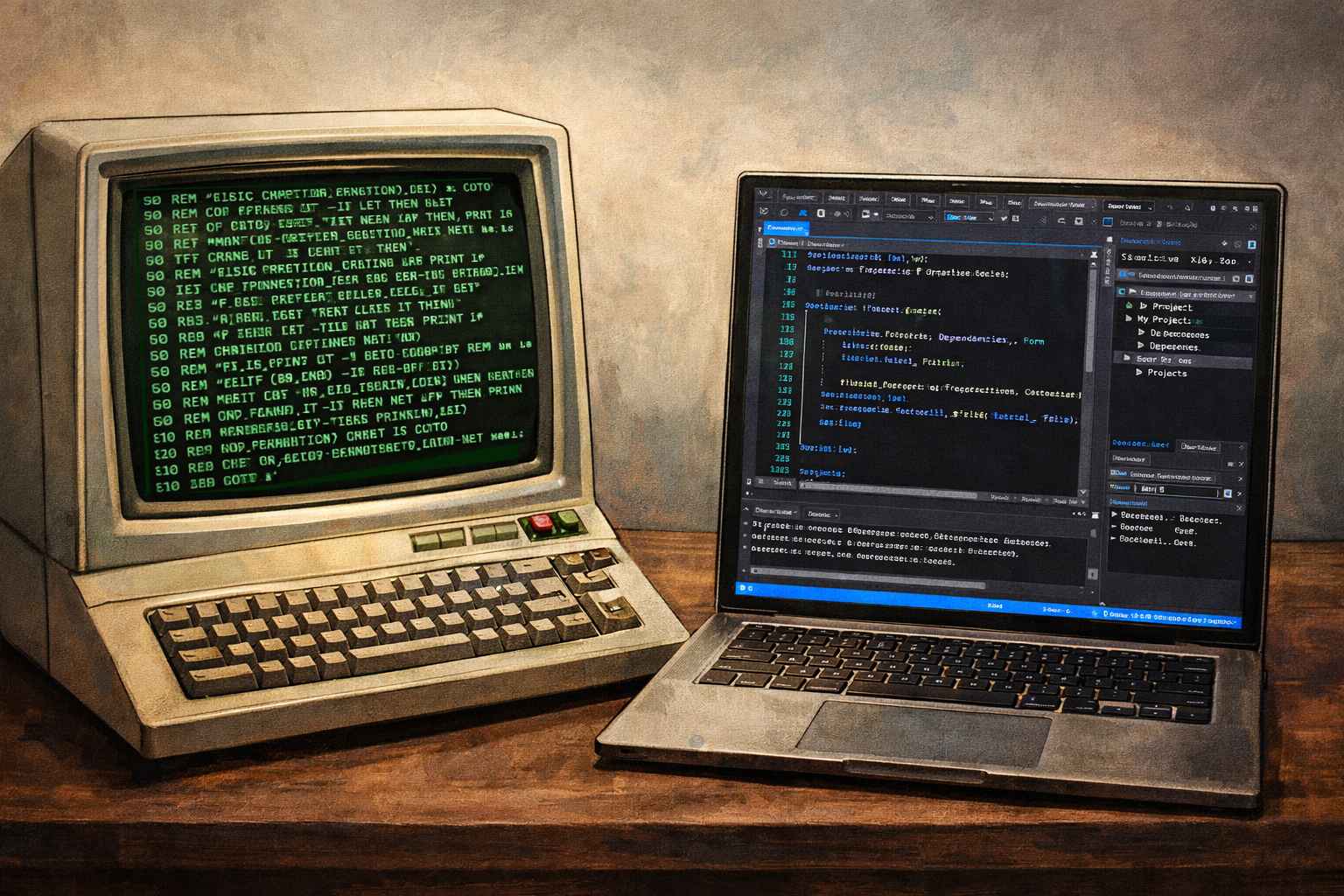
CLI stands for Command Line Interface. It's the text-only
way of telling a computer what to do—you type a
command, the computer does it, and it types back the
result. Before Windows, before the Mac, before mice and
icons and touchscreens, the command line was all there
was.
If you've ever opened a Command Prompt or PowerShell
window in Windows, you've seen one. And if your reaction
was "why would anyone use this when I have buttons to
click," you're not wrong. For humans, graphical interfaces
are almost always easier, faster, and more intuitive.
So why am I telling you to add a CLI?
Because Humans Are Not the Only Users Anymore
Here's what changed: AI can now use your computer. Not
in the Skynet way—in the helpful way. AI assistants
like Claude can run programs, pass them arguments, read
their output, and chain them together to accomplish
complex tasks. But they can't click buttons. They can't
drag sliders. They can't double-click icons.
Well, actually, they can. Of course they can!
Of COURSE they can!! —but not without a lot of effort
and expensive AI processing you don't have to pay for,
if you have a tool your AI can use without going to
its server for a lot of instructions. Because…
What Ai can do, and far more cheaply, is to simply type a command like:
Aspecta photo.jpg -Format=png -Width=800 -Aspect=16:9
And get back a converted, resized, cropped image without
ever touching a mouse. That one line does what would take
a human six clicks and two dialog boxes. Not because the
CLI is better—but because it's what the AI
can see more easily. And, again, cheaply.
The Dual-Interface Pattern
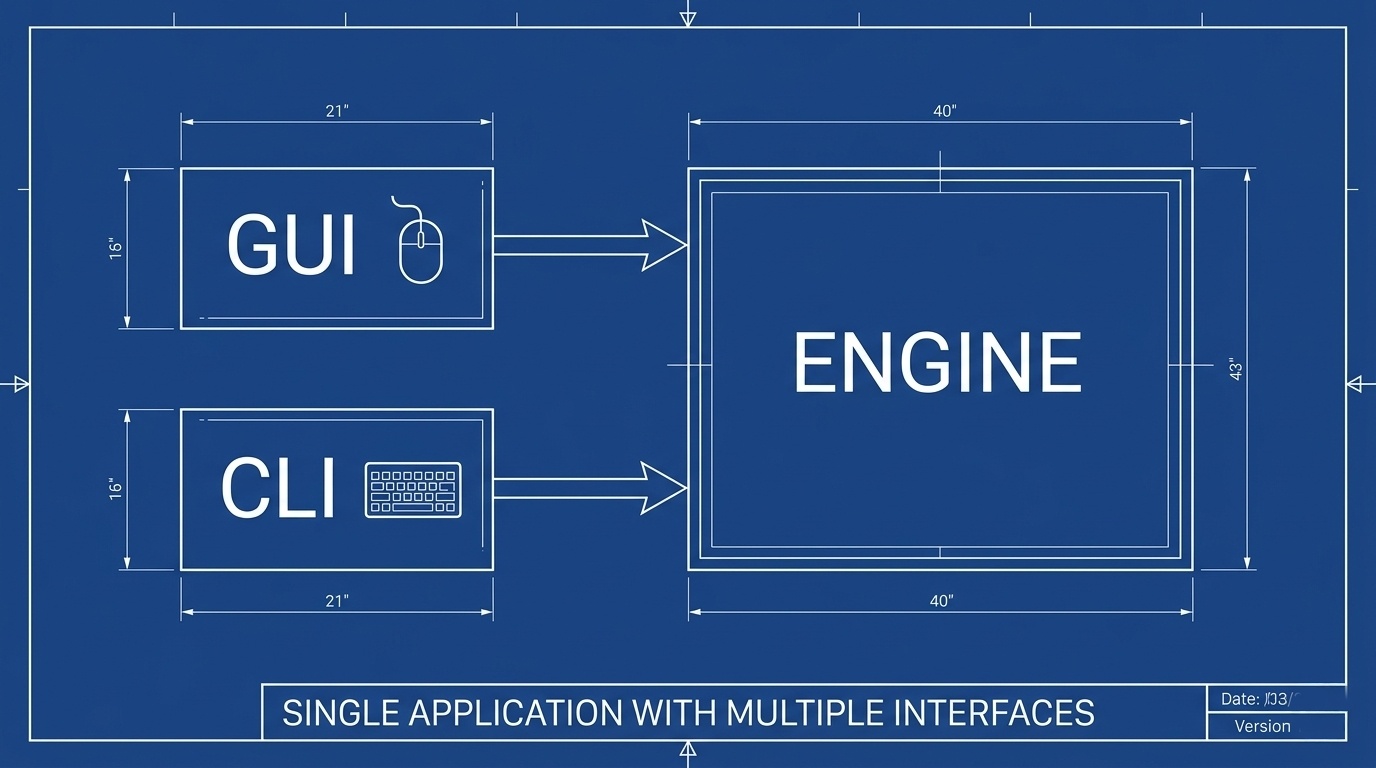
The pattern is simple. When your app starts:
- If it was launched with no arguments, show
the graphical interface. A human double-clicked
it.
- If it was launched with arguments, process
them and do the work silently. An AI (or a
shortcut, or a script) invoked it.
Both paths use the same engine underneath. The GUI
collects settings from buttons and sliders, then calls
the engine. The CLI collects settings from arguments,
then calls the same engine. One codebase, two doors.
I do this with every app I build now.
Aspecta,
my image converter, works this way. So does
LookHere,
my screenshot tool. Drop a file on the icon and you get
the GUI. Pass it arguments and it runs silently. Same
app, different door.
The Standard Arguments
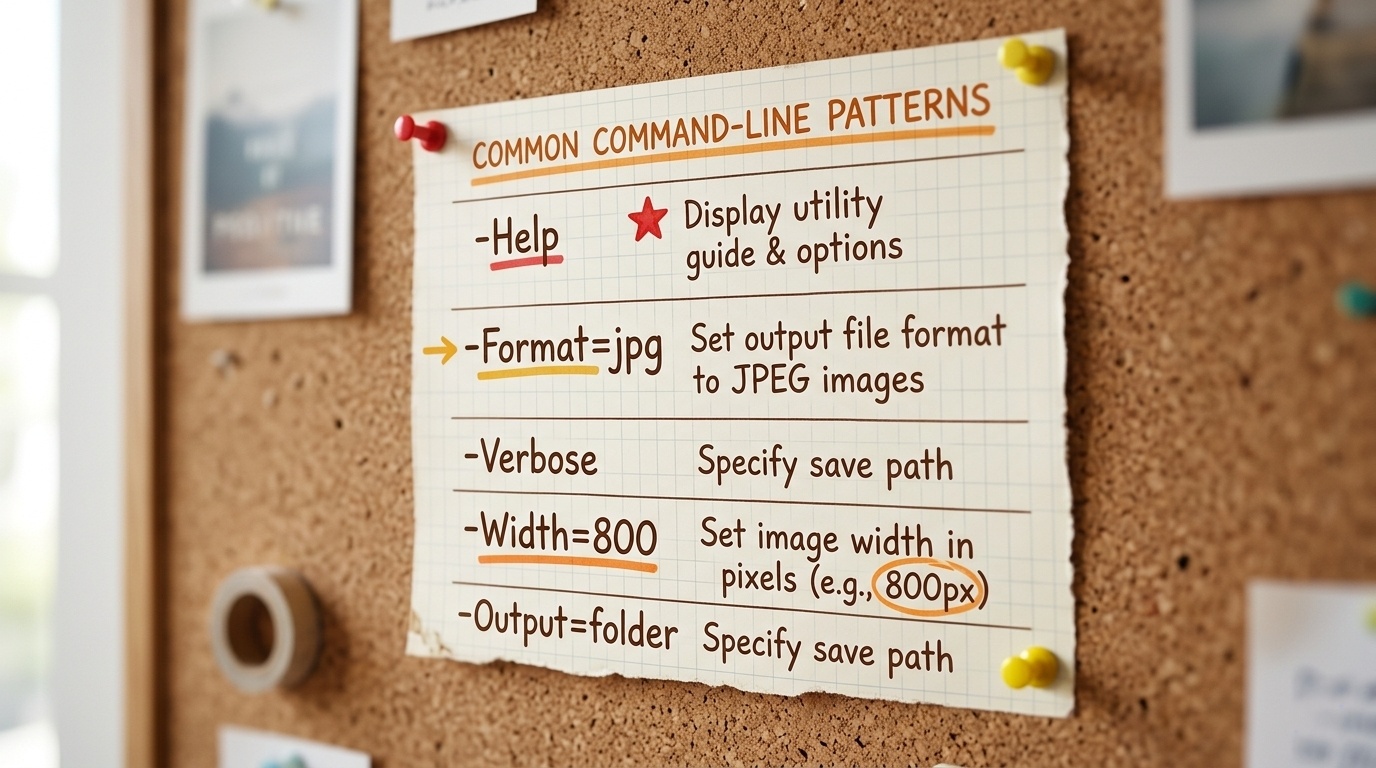
If you're going to build a CLI, there are a few
conventions worth following so that both humans and AIs
can figure out your app without reading the manual:
-Help, -?, or
/?—display a list of available
commands and what they do. These should all be
synonymous; a good argument parser treats
- and / as
interchangeable, and maps ? to
Help automatically. This is the
single most important thing to implement. An AI's
first move with an unfamiliar app will be to run
it with -Help and read the
output.- Bare arguments are input files. If someone
types
MyApp photo.jpg, the file is
the input. Don't make them type
-Input=photo.jpg unless there's
ambiguity.
- Named parameters use dashes.
-Width=800, -Format=png,
-Grayscale. The dash says "this is a
setting, not a filename."
- Flags are boolean. If
-Grayscale is present, it's true. If
absent, it's false. No need for
-Grayscale=True (though you can
support that too).
- Quote values with spaces.
-Output="My Photos\vacation.jpg".
If you standardize on this format, you can even write a
reusable argument parser that works across all your apps.
I did—it's a class called
CommandLineArgs
in my CilwaLib library, and every app I build uses
it.
Shortcuts: The CLI for Regular People
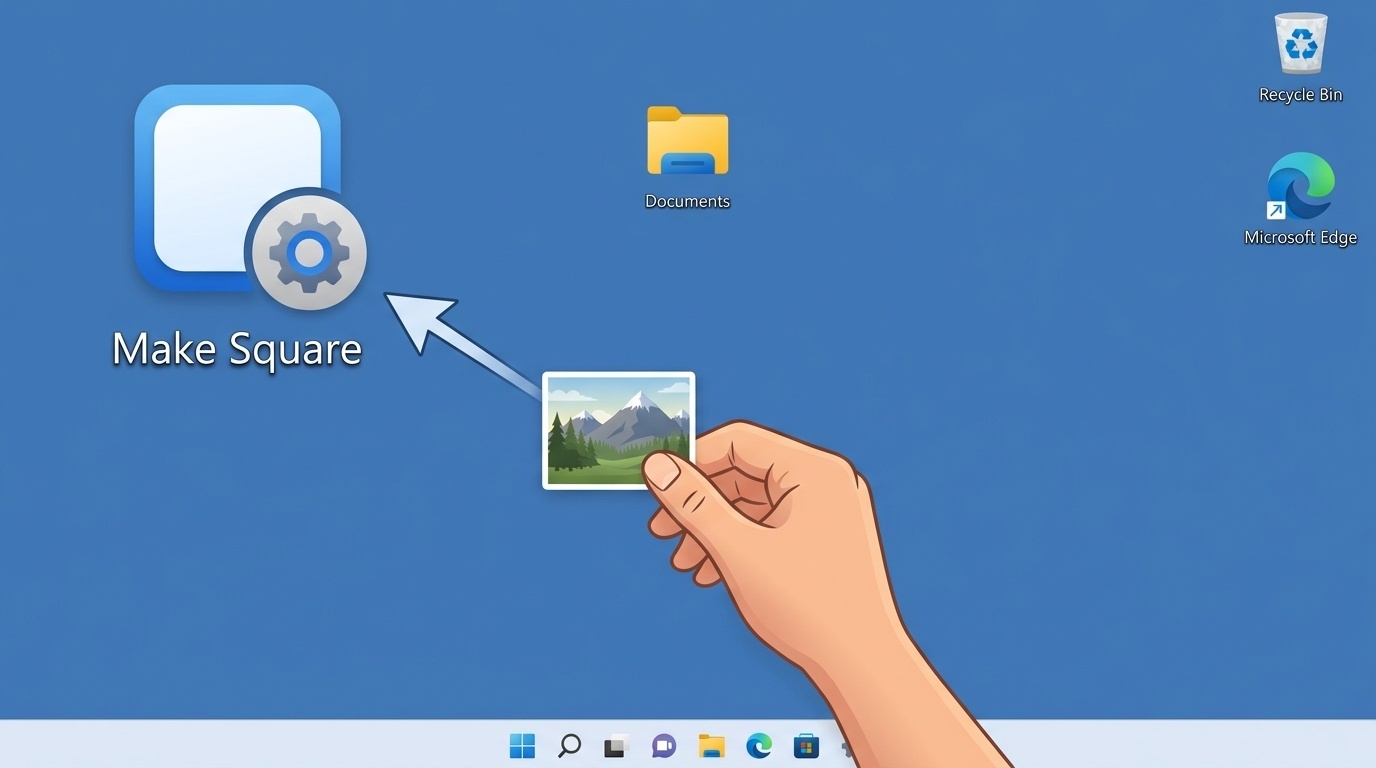
Here's the part that's not just for programmers. If an
app supports a CLI, you can create a Windows shortcut
that pre-loads specific arguments. Then you just drop
a file on the shortcut and it does exactly what you
configured—no app window, no clicking, no
thinking.
For example, I have a shortcut on my desktop for Aspecta
that converts any image I drop on it to a JPEG at 85%
quality. The shortcut's target is:
C:\Program Files\Aspecta\Aspecta.exe -Format=jpg -Quality=85
I drop a PNG on it. A JPEG appears next to the original.
Done. No window, no dialog, no decisions. That's the
power of a CLI—even for people who'd never open a
command prompt.
To create one yourself:
- Right-click your desktop, select New >
Shortcut
- For the location, type the full path to the app
followed by whatever arguments you want baked
in
- Give it a descriptive name like "Convert to JPEG"
or "Resize to 800px"
- Now drag files onto it whenever you need that
specific operation
Why This Matters Now
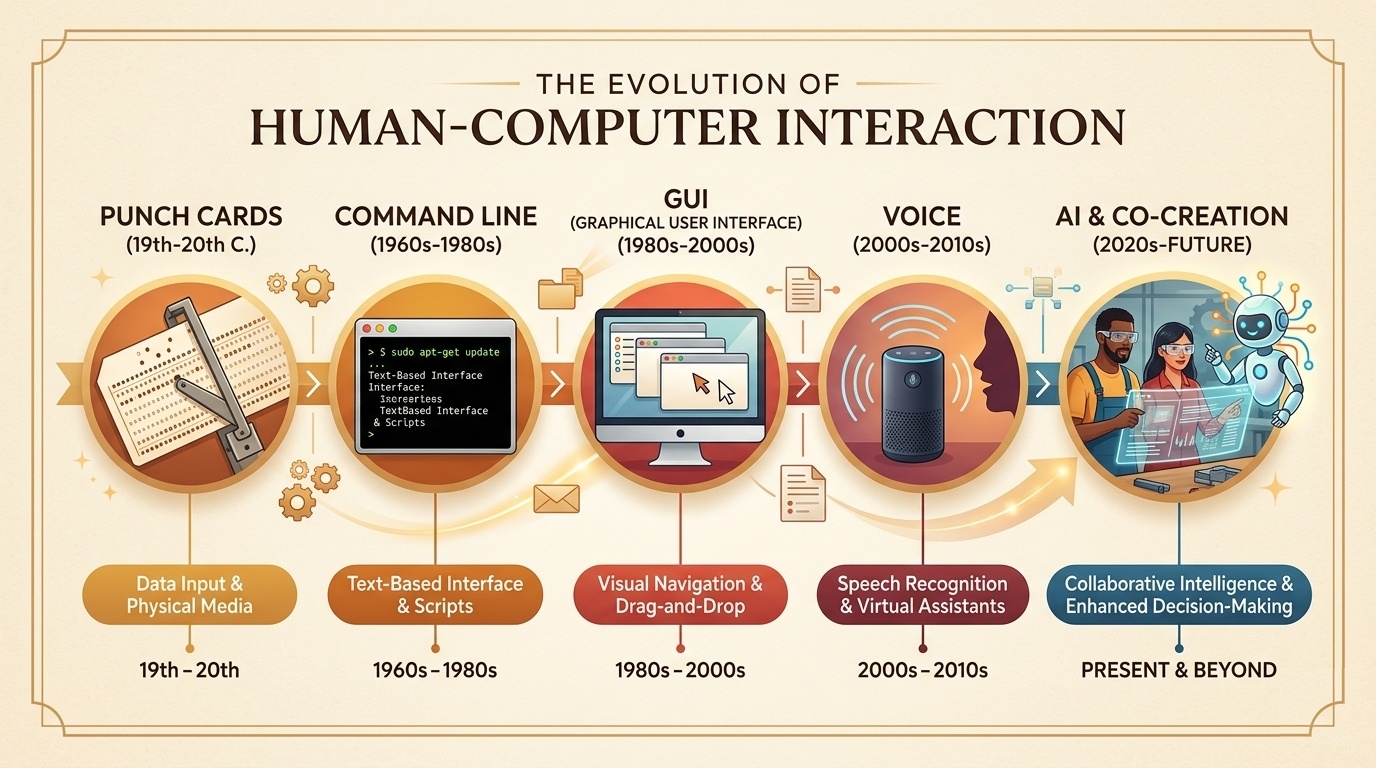
We're at an inflection point. For forty years, software
has been designed exclusively for human users. Menus,
buttons, drag-and-drop—all optimized for eyes and
fingers. The command line was "retro," something only
sysadmins and Linux enthusiasts bothered with.
But AI changed the equation. Now there's a second class
of user that's capable, tireless, and eager to help—but
it reads text, not pixels. It types commands, not clicks.
Building a CLI isn't going backwards. It's building a
ramp next to the stairs.
And the beautiful thing is: the CLI is easy to
build. If your app already has an engine that does the
work, adding a command-line front end is an afternoon's
effort. Parse the arguments, call the engine, print the
result. You've just made your app accessible to every
AI assistant on the planet.
Two doors. Same room. One for the human who wants
buttons. One for the AI that wants text. Build both,
and your app works for everyone—including users
who haven't been invented yet.