|
By: Paul S Cilwa |
Posted: 10/5/2026 |
|
Page Views: 90 |
| Hashtags: #Software #Windows #Shell #FileExplorer #Desktop #DocumentCentric #Free #CilwaLib |
| A replacement for the Windows desktop and File Explorer that is about your documents rather than your programs. Free, and a work in progress. |
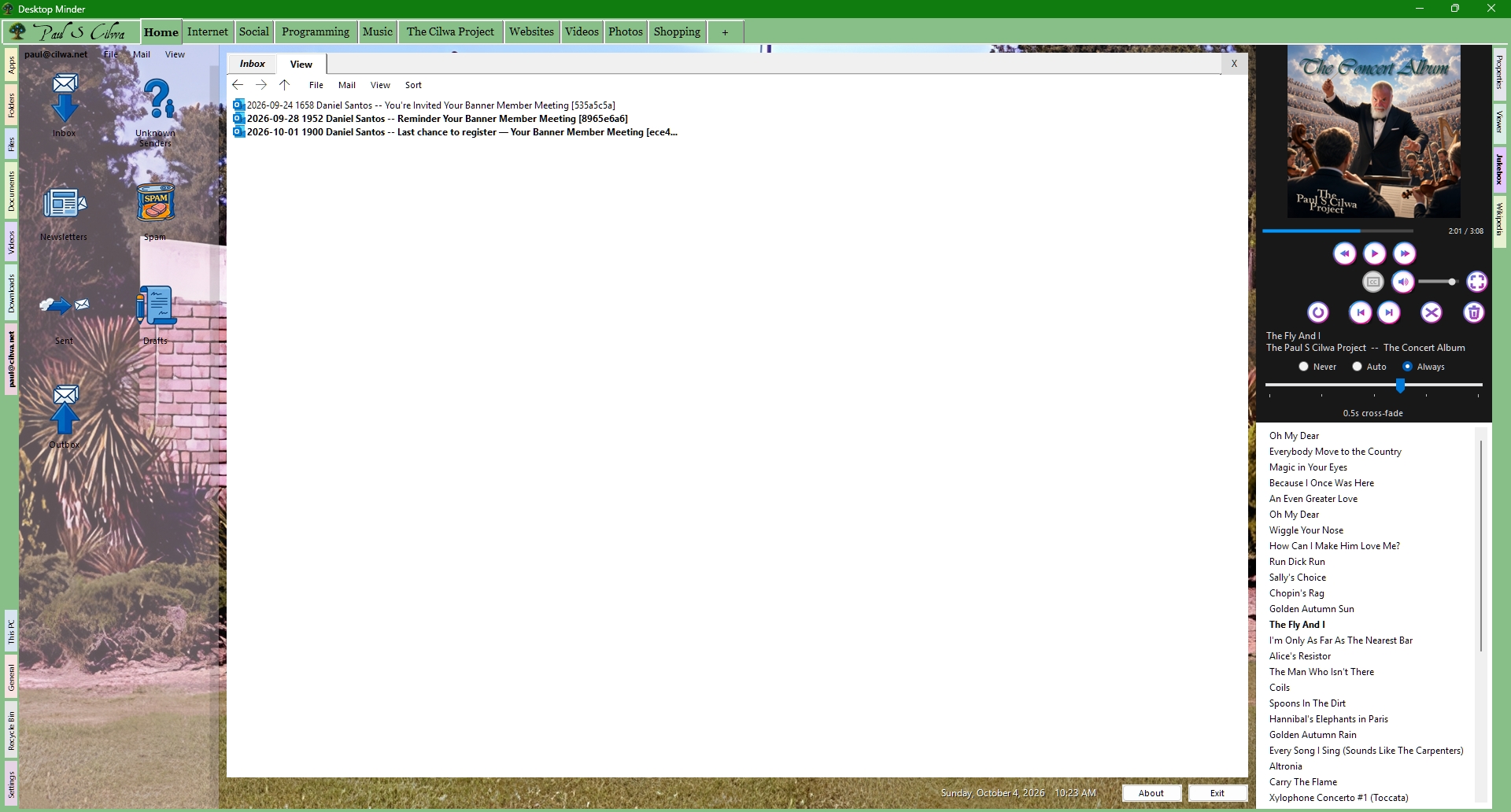
The idea behind it is simple to say and surprisingly hard to find
anywhere else: a computer should be about your documents, not your
programs. You don't want to "run a video player"; you want to watch a film.
You don't want to "open an email client"; you want to read a message. In Desktop
Minder, every one of those things is a document, and opening a document just
shows it to you, the way opening a folder shows you what's in it. There is no
separate program to find, launch, wait for and then load the file into.
What's Wrong With File Explorer
Nothing, if what you want is a list of files. But that's all it is. Explorer
shows you a folder and then hands off: double-click a photo and some
other program comes up to show it; double-click a film and a third one does;
double-click a shortcut whose target has moved and you get a box offering to
delete it. Every file you own is a ticket to some application, and the
application is the thing you actually use. The folder was just the lobby.
And Explorer has habits I've disliked for thirty years. Start a second copy while
a first one is running and both go at half speed. Drag a file to another folder
and whether it moves or copies depends on which drive the folder
happens to be on. One shortcut to a network drive that's switched off, and the
entire desktop freezes for a minute. The Details columns menu offers every
column Windows has ever heard of, in a list you have to scroll, for a folder of
photographs. I've written up the whole list, and what Desktop Minder does
instead, on the What File Explorer Gets Wrong page.
Documents, Not Applications
The way most computers work is app-centric: you pick a program, the
program opens a file, you work on it inside the program, and at the end the
program "exports" something. The document is a by-product of the application.
Desktop Minder is document-centric, which turns that around. The document
is the thing. It knows what can be done to it, and it offers those things wherever
it happens to be—on the desktop, in a folder listing, open in the middle of
the screen. A few examples:
- A folder opens in place, as a listing. The columns it offers depend
on what's actually in it: a folder of music offers Length and
Bit rate; a folder of photographs offers Width and
Height; a folder of neither offers neither. Tags can be edited by
typing right in the cell.
- A picture opens to be looked at. Click its Change tab and
right-click a red pixel, and the menu is about that red: select
everything like it, replace it, make it see-through. The same menu goes on to
list the whole picture, then the file, then the folder it's in, each with its
own commands—because pointing at a pixel is also pointing at all of
those.
- A film opens and plays, the moment you open it. Close it and open it
again next week, and it carries on from where you stopped.
- A mailbox is a folder. Its Inbox, Sent and Spam baskets are folders
inside it, and every message is a file you can see, sort, drag and
delete like any other file. Opening one reads it.
- A web page, saved as a shortcut, opens right there in the middle of
the screen, with a Back button, like any other document.
- Even a desktop's own settings are a document: a sheet you open from
the desktop's tab. Type a new name, press Enter, and it's on the tab at once.
Nothing waits for an OK.
The Documents, Not Programs page goes through these in
detail, along with the idea that holds the whole program together: every document
is a collection of smaller documents, all the way down.
What You See
Across the top of the screen is a row of desktops—Home, Music,
Photos, Projects, Internet and so on—each with its own wallpaper and its own
set of files. Each is simply a folder beside your real
Desktop folder, so there is nothing clever about it: Explorer, OneDrive and
your backup program all see it as ordinary files, because that's what it is.
Down the left side of each desktop are its launcher panes: the apps, the
folders and the files on it, plus This PC and the Recycle Bin.
Down the right side are Properties, a Viewer for peeking at whatever's
selected, the Jukebox for music, and whatever plug-ins you've switched on—Wikipedia
and sticky Notes so far. The middle of the screen is the View: the one
document that's open, with Back and Ahead arrows that work exactly
as a browser's do. When nothing's open, the wallpaper shows through.
The Desktops and Panes page walks through all of it.
Where It Stands
Desktop Minder is a work in progress, and I use it every day, which are not
contradictory statements. Folders, pictures, text, films, music, web shortcuts,
mail, contacts and notes all open as documents. Files drag freely between every
pane, every folder and File Explorer; dragging one kind of document into
another is only beginning. The picture editor works, but is young; the video editor
is designed, and the first of its eight stages built.
Each kind of document has a page of its own that says how far along it is, and
what's next: Text,
Images, Audio,
Video, and Email,
which has a section of its own because it's made of all the others.
There is no installer yet. When there is, it will be here, under the usual
Unknown Publisher warning, and it will need 64-bit Windows 11 and
nothing else. In the meantime these pages are a description of what it is
meant to be, written mostly so that I don't lose sight of it.
What's Inside
Desktop Minder is written in VB.NET on .NET 10, on top of my own
CilwaLib. Anything
with real structure—HTML, a message, the source editor—is shown
through WebView2, the browser engine that is already part of Windows 11.
Films step through ffmpeg. Everything the program remembers about a folder is
kept in a small text file in that folder, named Desktop.dmini, so moving a
folder moves its memory with it.
Desktops and Panes
|
By: Paul S Cilwa |
Posted: 10/5/2026 |
|
Page Views: 77 |
| Hashtags: #Software #Windows #Shell #DesktopMinder #Desktops #Launcher #Wallpaper #Plugins |
| A tour of the Desktop Minder screen: the row of desktops, the launcher panes, the View in the middle, the strip of panels down the right, and what happens when it is the Windows shell. |
| Estimated reading time: 5 minute(s) (1184 words) |
Windows gives you one desktop, and everything you own ends up on
it, in a heap. Desktop Minder gives you several—a row of tabs across the
top of the screen—and each one is a folder, with its own wallpaper and its own
apps, folders and files down the left side. You switch
between them the way you switch between tabs in a browser.
Documents, Not Programs
|
By: Paul S Cilwa |
Posted: 10/5/2026 |
|
Page Views: 80 |
| Hashtags: #Software #Windows #Shell #DocumentCentric #DesktopMinder #FileExplorer #Design |
| What it means for a desktop to be document-centric rather than app-centric. |
Suppose you want to watch a film on Windows. You find the file. You
double-click it. Windows looks up which program handles that kind of
file, starts the program, waits for it to draw its window, menus and toolbars,
and then hands it the file, which the program loads and, finally, plays. Four
steps, three of which are about the program. In Desktop Minder, you find the
film and open it, and it plays. That's the whole difference, and this page is
about why it matters more than it sounds.
What File Explorer Gets Wrong
|
By: Paul S Cilwa |
Posted: 10/5/2026 |
|
Page Views: 76 |
| Hashtags: #Software #Windows #FileExplorer #Shell #DesktopMinder #Copy #NetworkDrive |
| The habits of Windows File Explorer that Desktop Minder exists to fix, one by one, and what it does instead. |
| Estimated reading time: 5 minute(s) (1023 words) |
File Explorer has been the face of Windows since 1995, and most of
what it does, it has done the same way ever since. Some of those ways are wrong,
and have been wrong for thirty years, and every one of them has annoyed me
personally. This is the list, with what Desktop Minder does instead. None of it is
clever. It's just what you'd do if you were allowed to start over.