|
By: Paul S Cilwa |
Posted: 10/5/2026
Updated: 10/30/2026 |
|
Page Views: 135 |
| Hashtags: #Software #DesktopMinder #Email #Mailbox #POP3 #Gmail #Inbox #Baskets |
| Setting up a mailbox in Desktop Minder (Gmail included), how mail is collected and filed into baskets, what you can do with a mailbox and its messages, and the rules that mean a message is never fetched twice and never lost. |
| Estimated reading time: 9 minute(s) (2023 words) |
Setting Up
A mailbox is made by Set Up Email, which comes with Desktop Minder. Its icon is
in your Mail folder, which is inside PIM, the folder the Social
desktop shows. Open the icon and Set Up Email appears right there in the View, as a
form. When you've filled it in, press the green check at the right of the View's bar
(its tip says "Create email account") or press Enter; the mailbox is made and the
View closes. Tab moves from one box to the next, and Esc or the View's own
X closes it without making anything.
There are two other ways to the same form. Right-click the Mail folder and choose
New Mailbox, or choose Document > New > Mailbox while you're in it;
the form then opens in a window of its own, with a Make Mailbox button instead of
the check.
The Questions
- Account is either POP email account, for an address at your own domain
or almost any provider, or Gmail, which fills in Google's servers for you.
- Call it is the name the mailbox is filed under, anything you like: Work Gmail,
Old Yahoo, Cilwa. It's suggested from your address, and for Gmail it starts as
"Gmail".
- Your name starts as your Windows name; it's what the people you write to see.
- Email address, and the password. For most providers the servers are guessed
from your address (mail.yourdomain) and you sign in as the whole address; both
guesses can be typed over.
- Check Server knocks on the incoming server and says whether it's there and
whether its certificate is made out to that name. Nothing is sent and no password is
used.
- Copy from host or Move from host, explained under
Copy or Move. A new mailbox starts on Move.
- The server mail goes out through, and its port.
- Spam Watch, a group of settings: whether mail from your own address that your
host doesn't vouch for is spam; whether a Bitcoin address counts against a message;
whether to look up how old a sender's website is; whether to check links against the
daily list of phishing pages; whether to replace yesterday's newsletter with today's
(and how many of each to keep); how many hours to keep spam; and what counts as too
many strangers on one message. What these do is on
Contacts,
Strangers and Spam.
Make Mailbox tries the password with the server, and if the server refuses it says so and
offers to take you back to correct it. The safe answer is the first button. If you make
the mailbox anyway it's made without a password, which you can give later with
Sign In..., because a password the server has just refused isn't worth keeping.
Gmail
Google doesn't take your Google password for mail collected this way. It takes an
App Key, a 16-letter password of its own, and only with POP switched on in
Gmail's settings. That was too much for some of the people I wanted this to work for, so
Set Up Email does both. With Gmail chosen, the password box becomes App Key,
and it is read-only: you don't type it. Press Check Server and Google opens in a
window inside Set Up Email. You sign in there, yourself—nothing is typed for
you—and the helper makes the key, puts it in the box, and sets Gmail's POP options
to match your Copy or Move choice. The window is private: nothing of Google's is kept,
and the key never leaves Set Up Email.
If Google says App Keys aren't available for your account, it's because 2-Step
Verification is off; the helper says so and takes you to the page where you switch it
on, then you try again. If a step takes too long, the helper stops and shows what to do
by hand. Changing a Gmail mailbox between Copy and Move later offers to open Google again,
so Gmail is told too.
Changing Settings
Right-click a mailbox and choose Mailbox Settings...: the same form opens in a
window, filled in, with Save in place of Make Mailbox. When it closes, the folder
lists again.
Password and Signing In
Your password is entered at setup or with Sign In... on the mailbox's menu, and
kept on this computer, sealed, never in the mailbox's folder, which may well be synced
to other machines. So on a second computer you sign in again. Sign Out forgets
it, after asking; the mail already collected stays, and nothing is removed from the
host.
Collecting
Mail is collected by POP3. A mailbox is checked when you open it in the folder view, and
every hour after that while it stays open on screen; an automatic check never starts
within two minutes of the last one. It's checked quietly, so a problem, such as a
password not yet given, is mentioned along the bottom of the window rather than in a box
you have to dismiss. Check Mail, the circle of arrows beside Up, checks now
(it's there in the mailbox and in each of its baskets), and every check sorts what it
finds. Progress and the result show in the strip along the foot of the window. Messages
you've written that are waiting to go are sent at every check, too.
Copy or Move
Copy from host leaves every message on the server too, which is what you want
if another program, or your phone, reads the same mailbox. Move from host
takes messages off the server once they're safely here: in the same check that collects
them, one message at a time, and only after the copy here has been found on the disk and
checked again at that moment. Nothing is ever deleted from the server otherwise, and
anything you delete here goes to the Recycle Bin, so taking the server's copy straight
away costs you nothing. A new mailbox starts on Move. And it does what it's set to,
without asking each time. The first version asked; my verdict on seeing that was "Check
Mail should preserve or delete messages from the host as specified in mailbox settings
without further ado." People know the difference between copying a file and moving
it.
Gmail is the exception. Desktop Minder never sends Google a delete. With Move, the Gmail
helper instead sets Gmail itself to delete its copy once it has been collected. So on a
Gmail mailbox Delete from Host... isn't offered, and the tidying that waits for
the host's copy to be gone (replacing old newsletters, deleting old spam) isn't done yet.
The Properties panel says in words which a mailbox does, along with where it
collects from and sends through, whether that's encrypted, and whether you're signed
in.
With Copy, Delete from Host... clears messages off the server by hand: for
a basket, the whole mailbox, or just the messages you've picked out. It asks first,
with No as the answer if you just press Enter, and it never touches the copies on
this computer. It isn't offered on a mailbox that moves, since there's nothing left on
the server to delete.
Never Twice, Never Lost
A message is known by a fingerprint of the message itself, not by the number the
server happens to give it, and the last part of its file name is a tag made from that
fingerprint. So a message is recognized wherever it has been moved or renamed, and
is never stored twice. And if you delete the copy here while the server still holds
the message, the next check brings it back. That's not a bug; there is no list of
things deleted that the program has to keep forever, because a duplicate is merely
untidy, and a lost message is the worst there is. With Move, the server's copy goes in
the check that collected the message, so there is little for a deleted message to come
back from.
The Baskets

A mailbox opens in the View on its Inbox, with a tab along the top for each
basket, in this order: Inbox, Unknown Senders, Newsletters,
Spam, Sent, Drafts and Outbox. Each has an icon of its own,
which a theme can change. Click a tab and that basket is listed, newest first, with
From, Subject, Received and Size; since every file's name
begins with the date it was written, sorting by name sorts by date as well. A basket is
an ordinary folder, and Up from one leaves the mailbox for the folder it's in.
Unread messages are in bold, and Mark as Read and Mark as Unread set them
by hand. Opening a message marks it read.
Which basket mail lands in is explained in
Contacts,
Strangers and Spam. In short: people you know and people you've written to go to the
Inbox, strangers to Unknown Senders, bulk mail to Newsletters, and what Spam Watch
recognizes to Spam. Sent holds what has gone, Outbox is where messages are
written and wait to go, and Drafts is still there but nothing new is put in it.
Move To
Move To, on a message's menu, lists Inbox, Unknown Senders, Newsletters and Spam.
It's your word, and it outranks every test: a message you put in the Inbox or
Newsletters is never moved by a rule afterwards. Moving a message to the Inbox, or
choosing Not Spam, also moves that sender's other mail from Unknown Senders and
Newsletters to the Inbox and puts the sender on your allowed list, so what they send next
is let in. Moving to any other basket does none of that. Mail you wrote stays where it
is.
What You Can Do
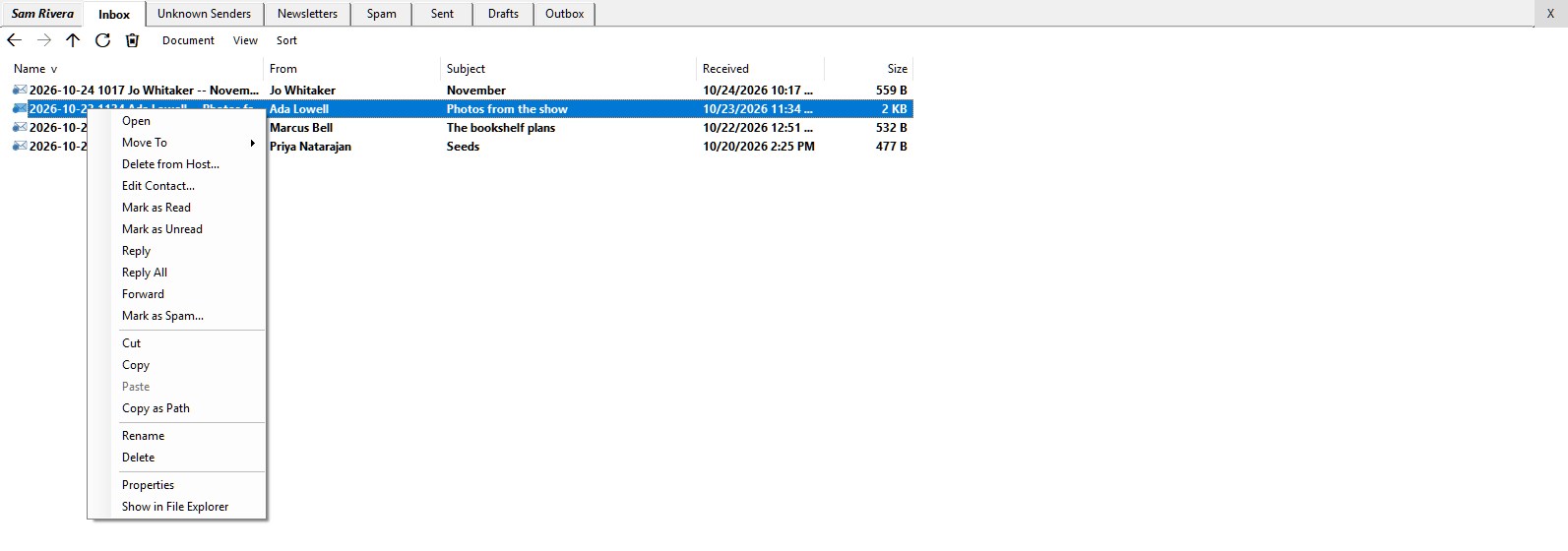
A mailbox is a folder, and a folder has no buttons, so what a mail program's buttons
would do is on the right-click menus of the mailbox, its baskets and its messages, on the
Document menu, and, for an open message, on its bar:
- Always: Check Mail, which is also the button beside Up, and, for a
mailbox that copies, Delete from Host.... Writing begins in the Outbox:
New Message is on the mailbox itself and in its Outbox, and Document >
New > Email makes one there.
- On the mailbox itself: Mailbox Settings..., and Sign In... or
Sign Out.
- With one message picked out: Reply, Reply All and
Forward (not for what's still being written); Mark as Spam... in the
Inbox, Unknown Senders and Newsletters, or in the Spam basket Not Spam; and
Move To. There is also a spam tin on the folder's bar, after the trash can,
lit when exactly one of those messages is picked.
- With any number: Add to Contacts... (Add Senders to Contacts...
for several); Mark as Read and Mark as Unread; Send Again,
in the Outbox; and, for a mailbox that copies, Delete from Host....
- In the Spam basket, the trash can on the bar is lit even with nothing selected, and
pressing it deletes every message there. See
The Spam Basket.
Messages Are Files
Each message is one .eml file, so everything you can do to a file you can do to
a message. Drag one from one basket to another and the program follows it. Copy one to
any other folder and it still opens there, as a message. Delete one with the Delete
key, or the trash can on an open message, and it goes to the Recycle Bin, which is
the undo. Move one right out of the mailbox, though, and as far as the mailbox is
concerned it's lost; if the server still has it, it'll be collected again. Double-click
a message to read it; see
Reading Mail.