|
By: Paul S Cilwa |
Posted: 10/5/2026
Updated: 10/30/2026 |
|
Page Views: 120 |
| Hashtags: #Software #DesktopMinder #Email #MailReader #TrackingPixels #Privacy #Security #Attachments |
| How Desktop Minder shows a message: in a sealed box that runs nothing and fetches nothing until asked, with Reply, Reply All, Forward and the spam tin on the message bar, links that open in place and attachments that are saved, never run. |
| Estimated reading time: 5 minute(s) (1133 words) |
What You See
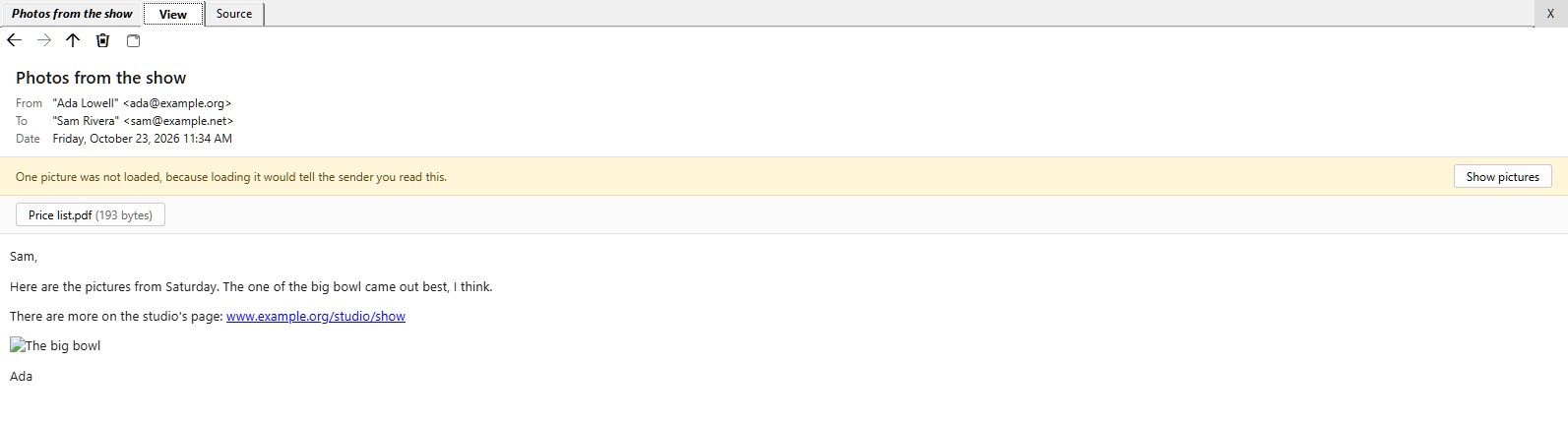
The message's tab shows its subject, and the message itself starts with the subject
again, then who it's from, who it's to, and when. Formatted mail is shown as the
page it is; plain mail is wrapped to the width of the View. Opening a message marks
it read. Its two tabs are View, which is the message, and Source, which
shows the whole raw message as text, every header included, for when you want to see
what was actually sent.
The Properties panel describes the message and its delivery. It says where
a message arrived from, never where it was "sent from," because that's all it
honestly knows: the machine that handed the message to your server. Everything a
message says about itself before that point was written by whoever sent it, and can
say absolutely anything. The panel also gives the sender checks—SPF, DKIM and
DMARC—as the mailbox's own server reported them, read the same way the spam
filter reads them; a verdict written into the message by anyone else, a forger
included, isn't believed. It also says the program the message was written with,
where replies are asked to go, and whether it's bulk mail that carries an unsubscribe
link.
The Message Bar
An open message has its own buttons on the bar, beside Back and Ahead:
- Up shows the basket the message is in. There is only ever one Up arrow: for
a message opened out of a folder it's the View's own, and the message's appears only
when the message was reached some other way.
- Reply, Reply All and Forward, with their words on them. Each
opens a message to write, in the View. They're there for mail that came in or went
out; a message still being written is opened for writing instead, so it has
none.
- The trash can, which deletes the message.
- The spam tin, in the Inbox, Unknown Senders and Newsletters, which asks
Mark as Spam.
Reply, Reply All and Forward
Reply answers the sender, to the address the sender asked replies to go to.
Reply All answers everybody the message went to. Forward passes it on to
somebody else. All three put the usual "Re:" or "Fwd:" in front of the subject once, quote
the original, and carry the threads that let other mail programs file the answer with it.
The same three are on the right-click menu of a message in a basket. What you write
is described on
Writing Mail.
Deleting a Message
The trash can sends the message to the Recycle Bin, closes its View, and puts you back
where you were. Where there's a Recycle Bin to take it, nothing asks first, because the
Recycle Bin is the undo. On a drive that has none, such as a USB stick or a network
folder, it asks.
Marking It as Spam
The spam tin asks Mark as Spam, and when you've answered, files the message in
Spam and closes it the same way. If you cancel the question, the message stays open.
Here's a trick worth knowing: select the words that give it away first. Words you've
selected in the message's text go into the question's "phrase in the text" box, already
ticked, and words selected in the heading above it (the subject or the sender's name) go
into the "phrase in the subject or the sender's name" box. The sender stays ticked as
well. The question itself, and everything it can teach, is on
Contacts,
Strangers and Spam.
Three Walls
A message is shown inside three walls, any one of which would do on its own:
- It's shown in a sealed box in which no script runs at all, and from which it
can't reach anything else in the program.
- A rule at the top of the message stops the browser from fetching anything from
the internet before a request is even made. Only the pictures that came
with the message are allowed.
- And as a backstop, every request the page makes that isn't the program's own is
refused: refused by default and allowed by exception, because the list of ways to
fetch something is longer than anyone's list of ways to block them.
The browser's habit of offering to save passwords and fill in forms is switched off
in mail, too.
Pictures
Pictures that came inside a message are shown. Pictures it only points at,
somewhere on the internet, are held back, behind a yellow bar: "3 pictures were not
loaded, because loading them would tell the sender you read this." That's what a
tracking pixel is: a picture one dot across, whose address is unique to you, so that
fetching it tells the sender the exact moment you opened their message, and from
where. A mail program that loads them quietly is answering on your behalf.
Show pictures loads them, for this message, this time. Opening it again asks
again, because the answer was about one message, not about the sender.
Links
A link to a web page opens that page right there in the View, as a document like
any other, and Back brings you back to the message. Point at a link without
clicking and its address shows along the bottom of the window, so you can see where
it really goes before you go. A mailto: link goes to Windows. Anything else is
refused, because handing a file: link to Windows runs a program.
Attachments
Attachments are listed with the message, and each can be saved, through a Save box,
to wherever you choose. That's all. An attachment is never opened by the reader, and
never written anywhere on its own: what arrives in the post is not run because it
asked nicely, and the Save box is you saying yes to this one. A saved file carries
the mark Windows uses for things that came from the internet, so Windows will warn
before running it.
Not Yet
- An attachment opened as the document it is—a picture, a text, a web
page—in the View, or dragged straight out to a folder.
- Web addresses in plain-text mail shown as links.
- Searching a mailbox for a message.